Global Styles
Global Styles let you save a complete editing state and reuse it across projects. They appear as blue pills in the sidebar and can be applied to any image with a single tap. Styles cascade — project-level styles inherit from global styles, so changes to a global style propagate to every project that uses it.
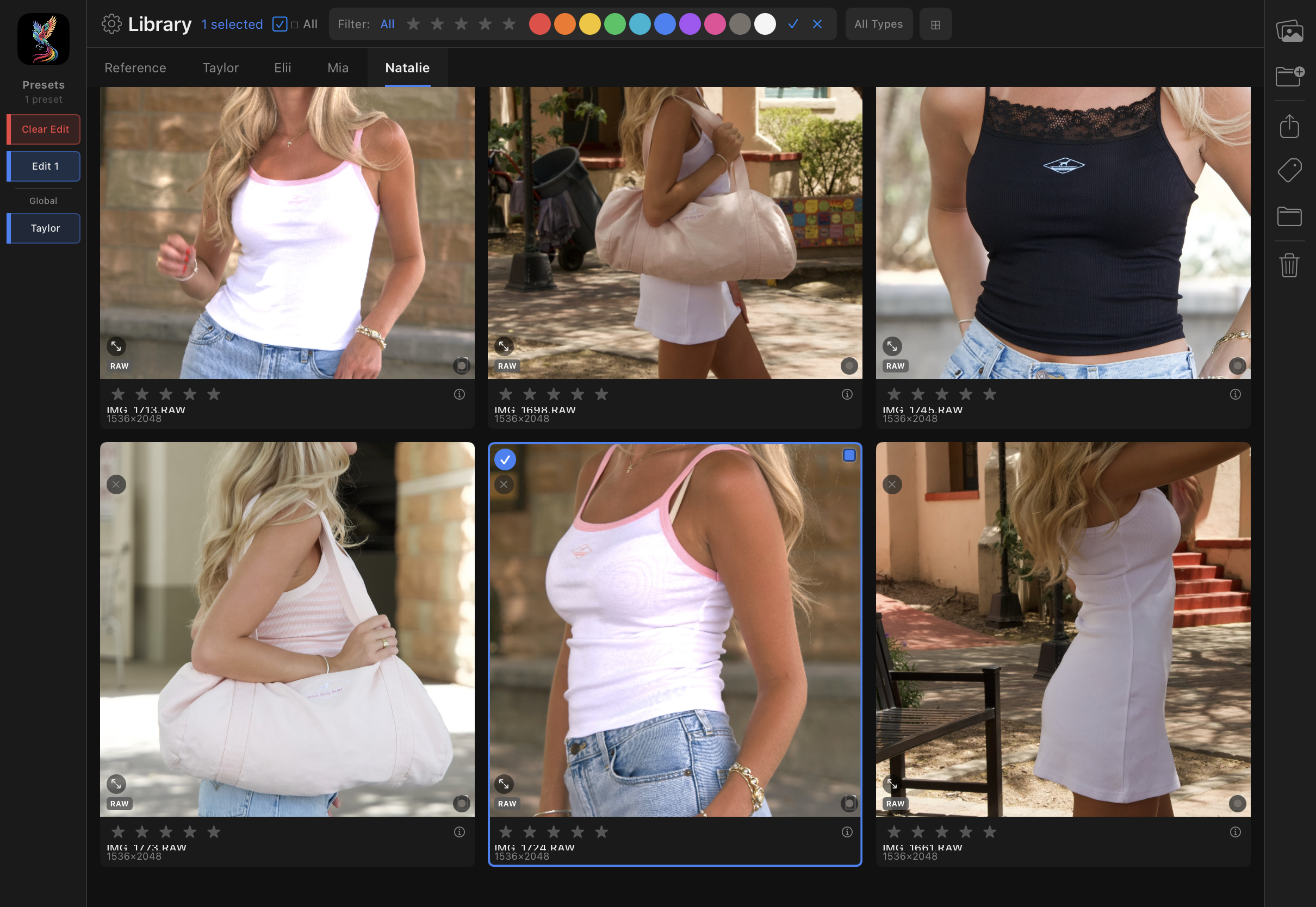
Creating a Style
There are two ways to create a global style:
From the Library
- In the Library, long-press any image thumbnail
- Tap Save as Style
- Name the style (e.g., "Wedding Warm", "Studio Cool")
- The style captures all current editing parameters for that image
From the Editor
- Edit an image until you are happy with the look
- Tap the Styles button in the toolbar
- Tap Save Current as Style
- Name the style
Applying a Style
Open any image in the editor and tap a blue style pill in the sidebar. The style's parameters replace the current edit state. You can then fine-tune individual sliders on top of the applied style.
Project-Level Styles
Each project can have its own set of styles that are visible only within that project. Project-level styles appear in the sidebar alongside global styles, but with a folder icon to indicate they belong to the current project.
Project styles support inheritance: when you create a project style based on a global style, the project style inherits the global style's parameters. If you later update the global style, the project style picks up those changes automatically — unless you have overridden a specific parameter at the project level.
Style Management
| Action | How |
|---|---|
| Rename | Long-press the style pill, tap Rename |
| Edit | Long-press the style pill, tap Edit Style — opens the style parameters for adjustment |
| Delete | Long-press the style pill, tap Delete |
| Duplicate | Long-press the style pill, tap Duplicate — creates a copy you can modify independently |
| Reorder | Drag style pills up or down in the sidebar to change their display order |
What a Style Captures
A style stores the complete editing state, including:
- All Light & Tone parameters (exposure, contrast, highlights, shadows, tone curve)
- Color settings (temperature, tint, saturation, vibrance)
- Color Grading (curves, wheels, HSL, mixer) for all regions (global, FG, BG)
- Effects (texture, clarity, dehaze, grain, sharpening, vignette)
- Film Curve parameters (if in scene-referred mode)
- Preset and LUT selections
Styles do not capture crop, geometry, portrait retouching, healing, or 3D lighting — those are image-specific and would not transfer meaningfully between images.
Workflow: Consistent Series
- Edit the hero image of a series to establish the look
- Save the edit as a global style ("Summer Editorial 2026")
- Open each remaining image and tap the style pill
- Fine-tune exposure and white balance per image (these vary shot to shot)
- If you later refine the hero image, update the global style — project-level overrides are preserved